Displays
Display IDs
Displays are listed in data/display.json. Add, rename or remove them in the admin under Settings → Displays, then click Save.
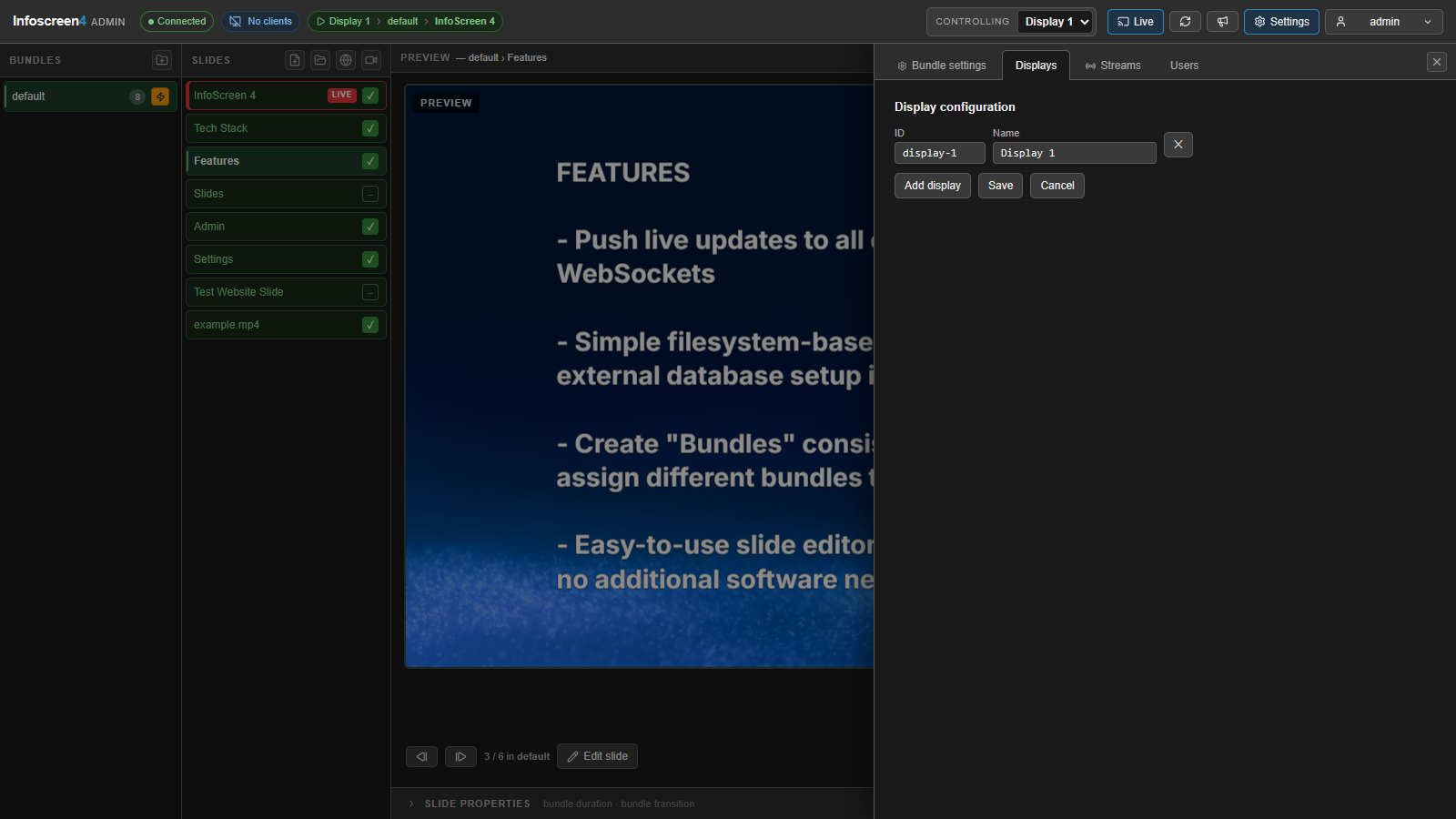
Each screen opens:
http://<server-ip>:3000/display/<display-id>
For example: /display/display-1.
- If the ID does not exist, the client falls back to the first configured display.
/displaywith no ID also shows the first display.- Several browsers can open the same ID. They all show the same content, which is useful for mirrored screens.
The admin shows how many clients are connected to each display.
A display shows only the slide content, full-screen:
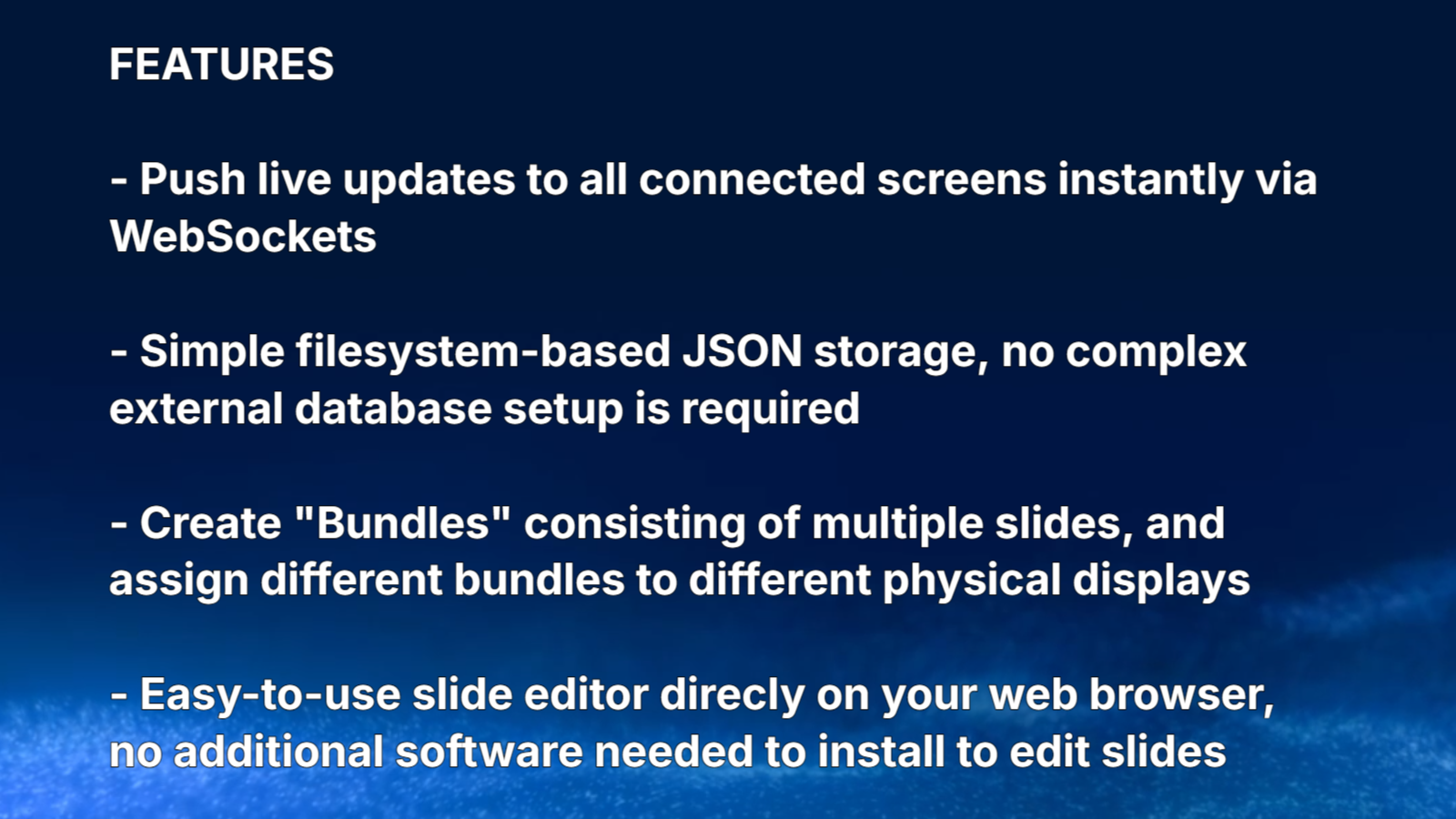
Kiosk setup
Run the display browser full-screen, with no browser UI, and start it at boot.
Chromium / Chrome
chromium --kiosk --noerrdialogs --disable-infobars \
  --autoplay-policy=no-user-gesture-required \
  http://<server-ip>:3000/display/display-1
--autoplay-policy=no-user-gesture-required lets videos with sound start without a click.
Firefox
firefox --kiosk http://<server-ip>:3000/display/display-1
If the server uses HTTPS with a certificate from pnpm run gen-cert, install data/ca.pem as trusted on the display machine first. Accepting the browser’s certificate warning instead works, but then the display downloads every video and image again on each slide change.
Reconnects
Display clients reconnect automatically. After a network drop or a server restart, a display picks up its current slide, active stream and announcement without a reload.