Installation
- Requirements
- Option 1: Node.js
- Option 2: Docker Compose
- Option 3: PM2
- First login
- Connect a screen
- Updating
Requirements
- Node.js 24 or newer. Installing on an older version fails with an “unsupported engine” error.
- pnpm 9 or newer (npm also works)
- A browser on each screen. Any modern Chromium, Firefox or Safari will do.
Option 1: Node.js
git clone https://github.com/reaby/infoscreen4.git
cd infoscreen4
pnpm install
pnpm run build
Create a .env file in the project root. You can copy .env.example as a starting point:
NODE_ENV=production
HOST=0.0.0.0
PORT=3000
Start the server:
pnpm run start
The server prints its address when it is ready. Open http://<server-ip>:3000/admin.
Infoscreen4 runs its own server (server.ts), which hosts Next.js and Socket.IO together. Start it with pnpm run start, not next start.
Option 2: Docker Compose
The repository includes a Dockerfile and a docker-compose.yml:
docker compose up -d --build
./datais mounted into the container, so your slides, media and users persist across rebuilds.- On first start the container creates a certificate authority and a TLS certificate in
./dataand serves HTTPS on port 3000. They persist across rebuilds, so displays only need to trustdata/ca.pemonce. - The container can’t see the host’s LAN address. Set
CERT_HOSTSindocker-compose.ymlto the names and IPs displays use to reach the server, before the first start. To change them later, rundocker compose exec app npm run gen-certand restart the container. - Behind a reverse proxy that terminates TLS, set
DISABLE_HTTPS: 'true'indocker-compose.yml. The container then serves plain HTTP and creates no certificate. See Behind a reverse proxy.
Option 3: PM2
pm2 start "pnpm run start" --name infoscreen4 --cwd /path/to/infoscreen4 --update-env
pm2 save
First login
On first start there are no user accounts, and the server prints a one-time setup code:
> No users exist yet. Initial setup code: 3F9A12C4
Open http://<server-ip>:3000/. Because no users exist yet, the page shows Create account with an extra Setup code field. Choose a username and password, and enter the setup code. This creates the first admin account. With Docker, run docker compose logs app to see the code.
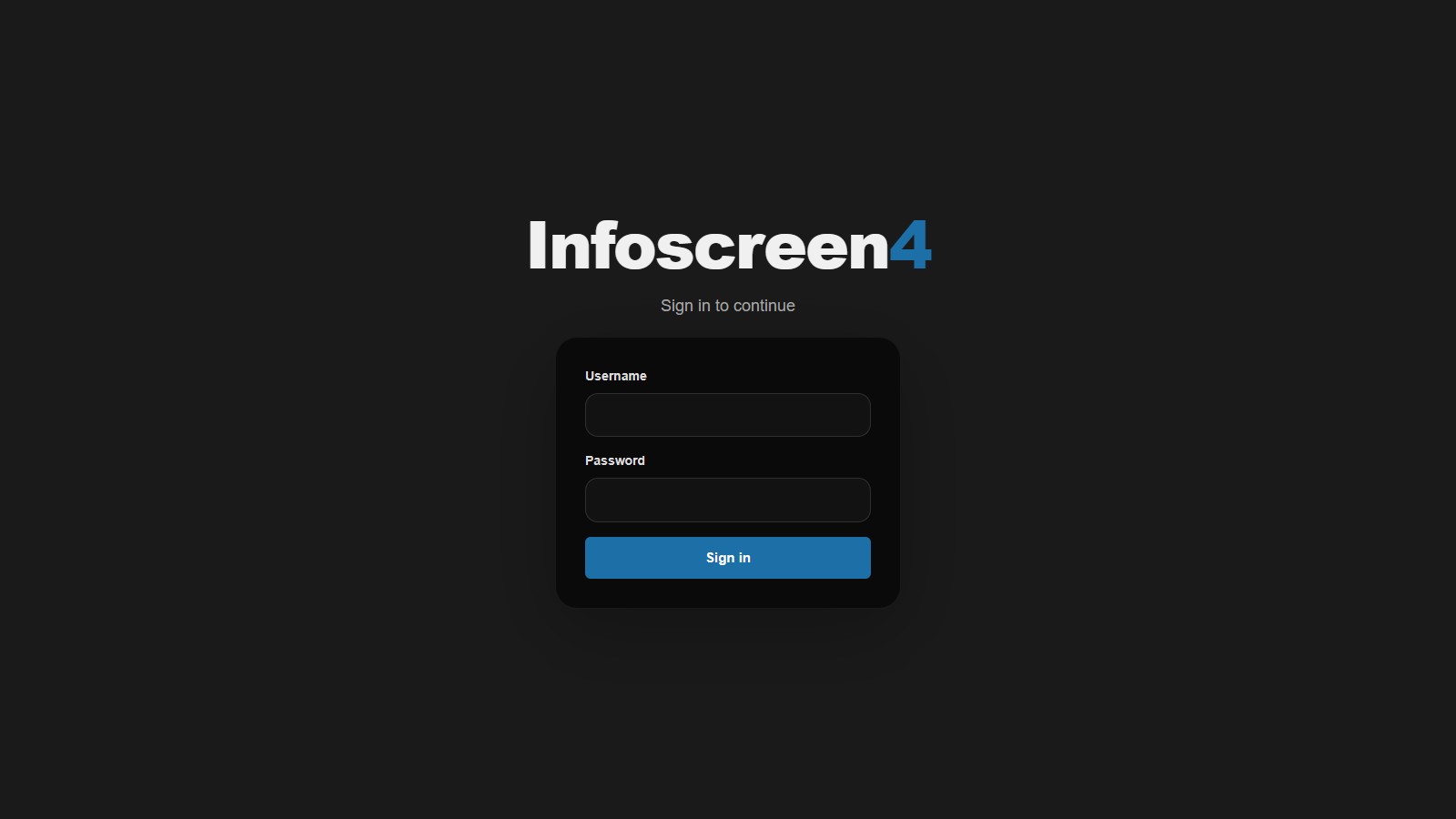
After that, the page shows the normal sign-in form:
See Users and roles to add more accounts.
Upgrading from an older version? data/users.json is no longer tracked in git. Back it up before you git pull. If the pull deletes it, copy your backup back.
Connect a screen
On each screen’s computer, open a browser in full-screen or kiosk mode on:
http://<server-ip>:3000/display/display-1
See Displays for more on display IDs and kiosk setup.
Updating
git pull
pnpm install
pnpm run build
# then restart the server (pm2 restart infoscreen4, docker compose up -d --build, ...)
Your content lives in data/, so updating does not touch it. Back up data/ before large upgrades anyway.